Image Clipboard History for Mac
You copy images throughout the day — screenshots, design references, charts, icons, UI mockups. macOS only remembers the last copied item. TextStow automatically records every image you copy so you can find and reuse images you copied minutes, hours, or days ago.
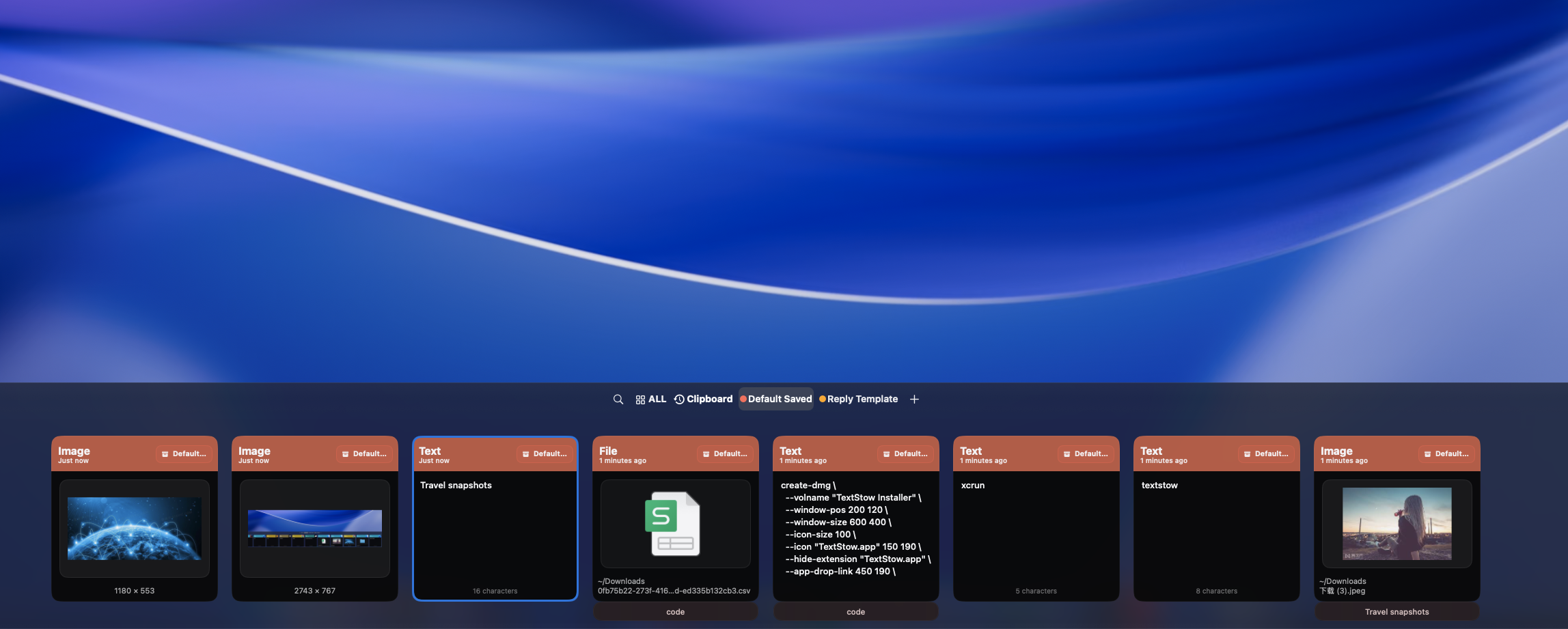
macOS Does Not Track Copied Images
When you copy an image on Mac — a screenshot, a design reference from a webpage, a chart from a presentation — macOS only holds it in the current clipboard. Copy something else and the image is gone. There is no built-in way to find "that screenshot I copied earlier." A clipboard manager like TextStow changes this by automatically recording every image you copy.
Automatic Image History
TextStow records images alongside text and files in your clipboard history. Every screenshot, copied graphic, and pasted image is captured and timestamped. Browse your image history chronologically or filter by content type to find images quickly.
Find Copied Screenshots and Design References
Need that screenshot you copied ten minutes ago? That UI mockup you grabbed from a competitor site? That chart from a presentation? TextStow clipboard history keeps them all accessible. Filter by image type, sort by time, and search by source application to find what you need.
Bookmark Important Images
When you find an image you want to keep long-term, bookmark it. TextStow bookmarks are permanent — they survive history cleanup and are organized with categories and tags. Save design references, brand assets, and frequently used images in a searchable library. <a href="/use-cases/save-frequently-used-images-mac">Learn how to save frequently used images on Mac.</a>
Image History vs Image Collection
TextStow supports two ways to manage images: clipboard history for recent copied images you need to find and reuse, and permanent bookmarks for images you want to keep long-term. The two work together — find an image in history, then bookmark it if you will need it again. <a href="/use-cases/save-frequently-used-images-mac">Learn the difference between history and collection.</a>
Frequently Asked Questions
Can TextStow track copied images on Mac?▾
Yes. TextStow automatically records images alongside text and files in your clipboard history.
How do I find a screenshot I copied earlier?▾
Open TextStow clipboard history and filter by image type. Browse chronologically or search by source application to find your copied screenshot.
Can I save images permanently?▾
Yes. Bookmark important images in TextStow. Bookmarks are permanent, organized with categories, and survive history cleanup.
What types of images are recorded?▾
Any image copied to your clipboard — screenshots, design references, icons, charts, graphics, and more.
Does TextStow store images locally?▾
Yes. All clipboard data including images is stored locally on your Mac in a SQLite database.
Free Download TextStow
You copy images throughout the day — screenshots, design references, charts, icons, UI mockups. macOS only remembers the last copied item. TextStow automatically records every image you copy so you can find and reuse images you copied minutes, hours, or days ago.
Free Download