Your Copy-Paste Workflow, Transformed
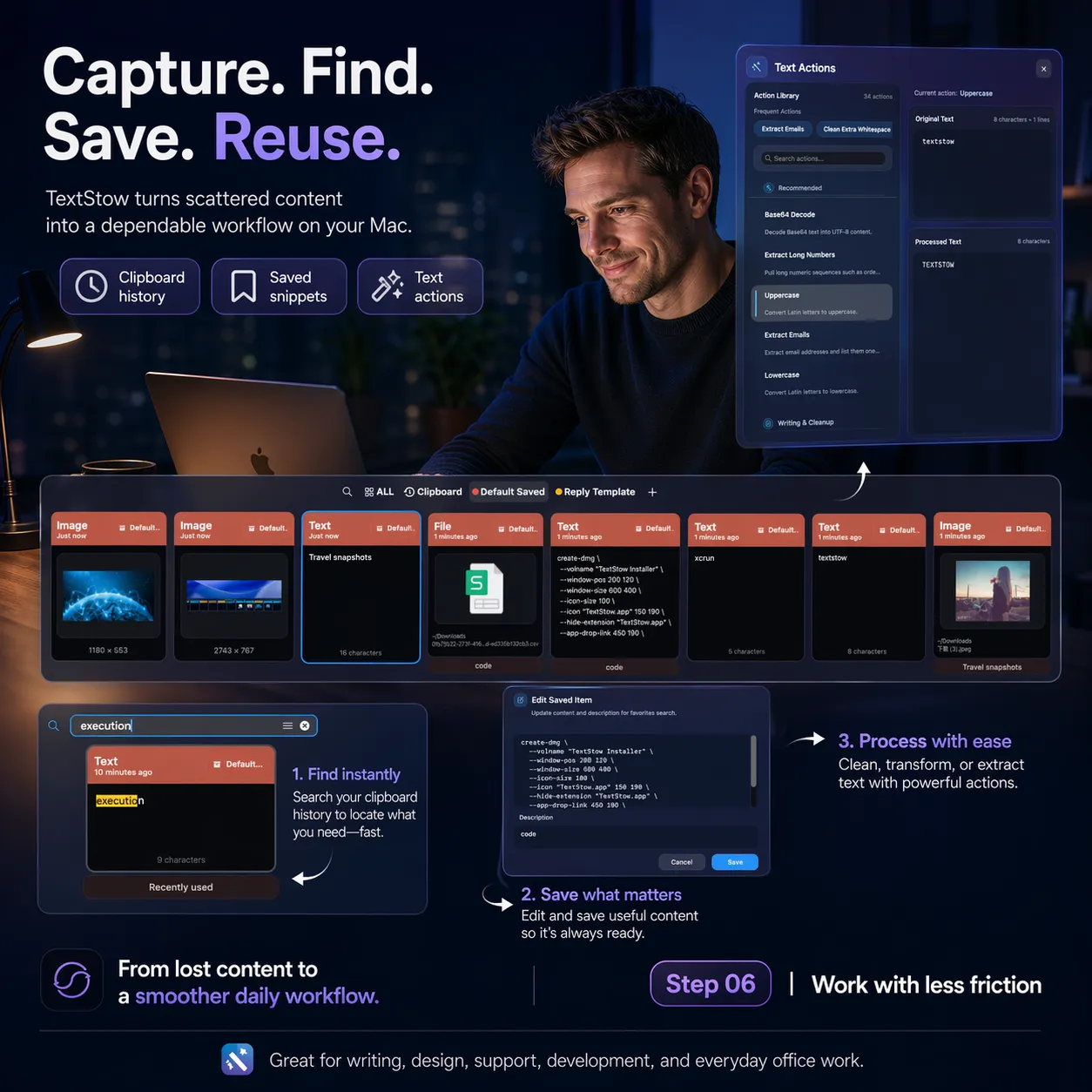
You already copy constantly. TextStow makes sure nothing useful disappears. Copy normally, search when you need it, bookmark what matters, and clean up messy text — all without leaving your current app.


Step 1: Copy as You Normally Do
TextStow runs silently in the menu bar and captures every copy — text, images, and files. No keyboard shortcuts to remember, no manual save action. Just keep copying, and everything is recorded automatically.
Step 2: Open the Panel and Search
Double-tap the Option key to bring up the clipboard history panel. Type a few words you remember from the content, and results appear instantly. Filter by content type, time range, or source application to narrow down fast.

Step 3: Copy Back or Paste Directly
Press Enter to copy the selected item back to your clipboard, or press Command+Enter to paste it directly into the application where your cursor is. No switching back and forth — the content goes exactly where you need it.
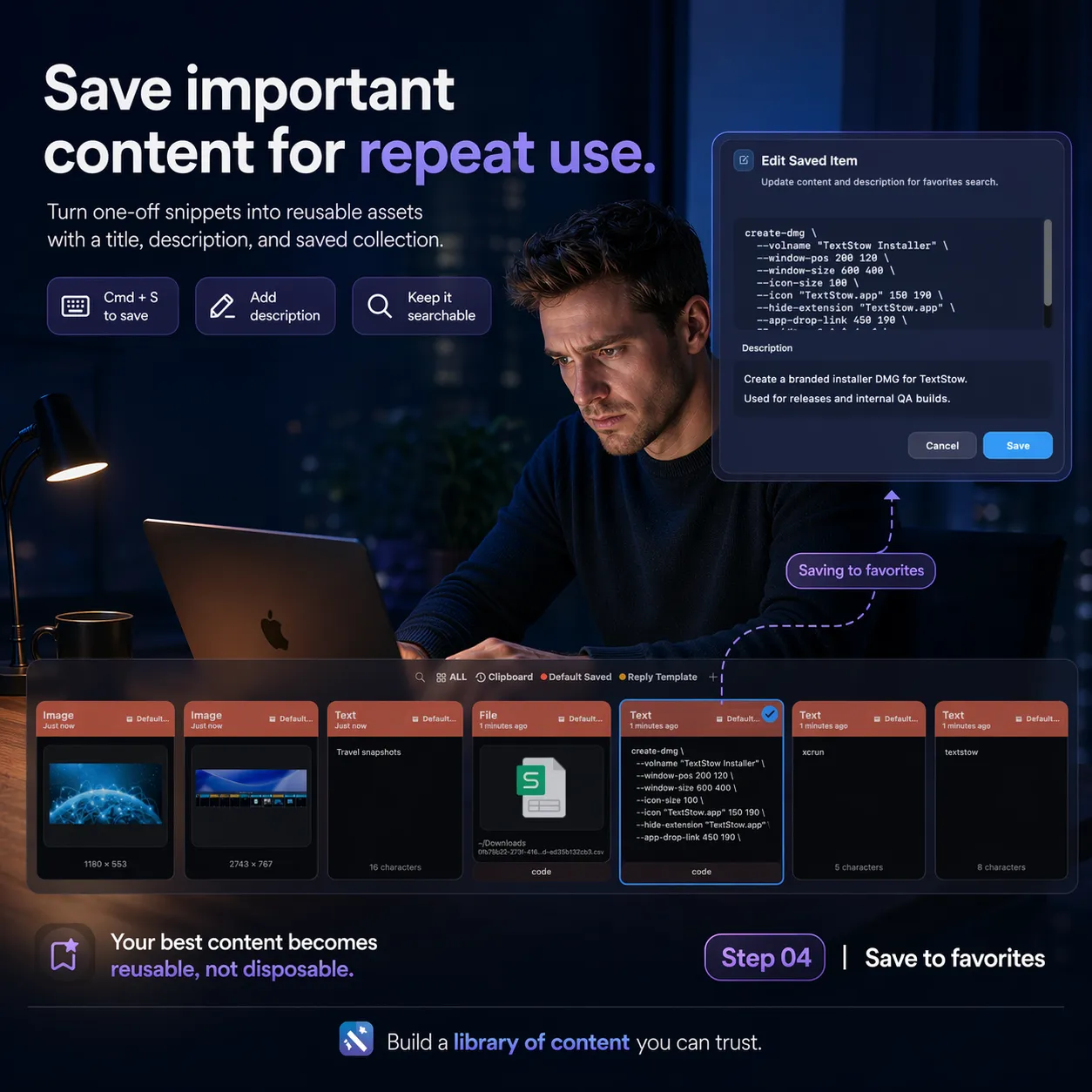
Step 4: Bookmark What You Want to Keep
For content you use repeatedly — templates, signatures, code snippets, config values — save it as a bookmark. Bookmarks are permanent, searchable, and organized by category and tags. They survive any history cleanup.
Frequently Asked Questions
Do I need to change how I copy things?▾
No. TextStow works with your existing copy habits. Just copy normally and everything is saved.
How do I open the clipboard history?▾
Double-tap the Option key (default shortcut, customizable in Settings).
Can I paste directly into my app?▾
Yes. Select a history item and press Command+Enter to paste directly into your target application. This requires Accessibility permission.
How do I keep important content permanently?▾
Select a history item and press Command+S to save it as a bookmark. Bookmarks are never auto-deleted.
Free Download TextStow
You already copy constantly. TextStow makes sure nothing useful disappears. Copy normally, search when you need it, bookmark what matters, and clean up messy text — all without leaving your current app.
Free Download